Ever feel like your Amazon ads are wasting money on clicks that were never going to convert? It happens more often than you think, and most of the time, the problem isn’t your product or your bids. It’s the keywords you shouldn’t be showing up for.
That’s where negative keywords step in. Think of them as your weekly clean-up routine: quick, simple, and surprisingly powerful. And here’s a question for you: when was the last time you checked which search terms were quietly draining your budget?
In this guide, we’ll walk through how to build a weekly negative keyword routine that keeps your spend clean, your traffic relevant, and your campaigns performing exactly the way they should. Let’s tighten up those ad dollars, one filter at a time.
The Role of Negative Keywords in Budget Protection
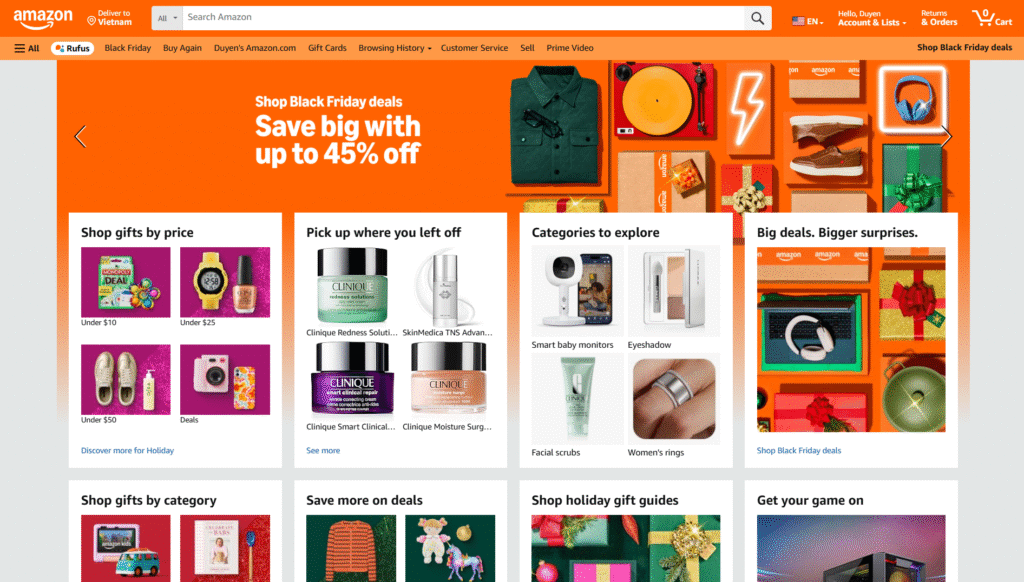
Suppose you’ve ever looked at your search term report and thought, “Why did I pay for that click?” You’re definitely not the only one. Irrelevant traffic is one of the most common reasons ad budgets disappear faster than expected.
Source: Amazon
And here’s an important point: With 42% of PPC marketers always targeting exact match keywords, wasted spend can still happen, because even a precise match isn’t perfect.
So what’s causing the leak? Most of the time, your ads are matched to searches that are somewhat related but not quite relevant enough to convert. And unless you block those terms, they keep showing up and quietly costing you money.
That’s why negative keywords matter. They help you prevent low-quality clicks, filter out searches that never lead to purchases, and keep your budget focused on people who are more likely to buy. Nothing fancy, just a simple way to keep your spending clean and intentional.
As you review your campaigns each week, ask yourself: Which search terms should I stop paying for altogether? Once you start answering that consistently, negative keywords become an easy habit that protects your budget and improves performance over time.
The Weekly Negative Keyword Routine
If you want to cut wasted spend in Amazon Ads, this routine is one of the simplest and most impactful habits you can build. The goal isn’t to overcomplicate things; it’s to remove irrelevant traffic every week, so your budget goes toward customers who actually want to buy.
Step 1: Pull Your Search Term Report (Daily or Weekly)

Source: Amazon Ads
Start by opening the right report. In Amazon Ads, you can view your search terms in two ways:
You can go to Campaign Manager → Insights → Search Term to review them directly, or you can generate a file via Reports → Create Report → Search Term Report.
Choose a 7-14 day date range so you can clearly see the terms that spend money but don’t drive sales. This report reveals what shoppers actually typed before seeing or clicking your ad, and it’s the foundation of every decision you’ll make in this routine.
Step 2: Identify High-Waste Queries
Once you have the report, your next step is spotting the search terms that drain your budget without contributing to revenue.
Prioritize terms that spend money but bring in zero sales, or terms that are clearly the wrong intent for your product, things like “refill,” “replacement,” “part,” or “manual,” which often show up in categories like home, beauty, and consumer goods.
Search terms with a high CTR, but no purchase, are also important to catch, because they indicate the shopper clicked out of interest but quickly realized your product wasn’t what they were looking for.
Step 3: Add the Right Match Type (Negative Exact vs Negative Phrase)
After you identify the terms to block, choose the right negative match type. Negative Exact is the safest option when you want to block one specific search term without affecting variations around it. It’s ideal for cleaning up precise, one-off problems.
Negative Phrase, on the other hand, is much more powerful because it blocks any search term that contains that phrase. This is perfect when you notice a clear pattern, for example, all terms that include “refill” are irrelevant to your product. The downside is that Negative Phrase can unintentionally block good traffic if you’re not careful.
So before you click “Add Negative,” take a moment to consider whether you’re blocking just the bad intent, or possibly restricting valuable traffic as well. A little caution here saves you from hidden performance issues later.
Step 4: Categorize Into Practical Negative Lists
Because Amazon doesn’t offer shared negative keyword lists, it helps to create your own system. Group your negative keywords in Google Sheets or Notion so you can reuse them when launching new campaigns.
You can organize them by intent categories like “Wrong Buyer Intent” (free, cheap, how to), “Wrong Product Type” (refill, replacement, spare), “Wrong Audience” (kids, toddler, men/women), or “Off-Category Terms.” After building your lists, return to each campaign and add the relevant negatives. This saves you hours of repeated manual work, especially when you’re scaling or testing new structures.
Step 5: Re-Audit Your Negatives Monthly
After running campaigns for a few weeks, your negative keyword list will grow, and that’s exactly why a monthly audit is essential. Search behavior on Amazon shifts quickly with seasonality, shopping events, and trends, meaning some terms you blocked last month could become valuable this month.
A monthly audit helps you spot negatives that are too restrictive, unblock any terms that could now drive sales, and add new recurring search terms you’ve noticed in recent reports. It’s also a good moment to double-check that all new campaigns have the correct negative groups attached.
This review takes only 15-20 minutes, but it prevents ROAS drops and keeps your targeting clean as your account evolves.
Universal Negative Keywords You Should Review Weekly
Every advertiser, no matter the category, runs into the same buckets of low-intent searches. Reviewing these weekly helps you cut wasted spending before it snowballs. Below are the keyword groups you should keep an eye on, why they’re dangerous, and how to handle them inside Amazon Ads.
Low-Intent Information Terms
what is / how to / meaning / tutorial / example
These searches come from people who are still learning, not shopping. If someone types “how to use a blender,” they’re not ready to buy one yet. These queries eat budget quietly because they often have deep impressions but almost zero conversions. Group these into a shared negative list, such as “Informational Search Terms,” so you can exclude them from all campaigns at once.
Price-Sensitive & Freebie Hunters
free / cheap / discount / sample / trial
These terms can be tricky. Sometimes they’re totally irrelevant (“free vitamins”), and sometimes they show weak buying intent (“cheap skincare set”). Exclude them entirely when the intent clearly does not align with your product.
But if you do offer budget-friendly versions, trial sizes, or coupon deals, you may consider allowing a few of these terms in low-bid discovery campaigns only, not in your main performance campaigns.
Job-Seeking Queries
jobs / career / salary / hiring / internship
Amazon shoppers who search for these are not future customers; they’re just looking for work. This traffic generates high impression volume, almost no conversions, and distorts your campaign performance, especially in Sponsored Brands. Add all of them to a shared negative keyword list named “Recruitment Queries,” and keep them permanently blocked.
Content Browsers
review / forum / reddit / blog / wiki / article
These users are still doing research and are nowhere near ready to buy. On Amazon, this type of traffic usually appears in Sponsored Brands or Sponsored Brands Video. They might click out of curiosity, but they rarely convert. Group these into an “Early-Stage Browsers” negative list to avoid paying for clicks from people who are still comparing options outside Amazon.
Conclusion
Negative keywords aren’t complicated, but they’re one of the most reliable ways to protect your Amazon Ads budget. When you review your search terms consistently, block irrelevant patterns, and audit your lists each month, you stop paying for clicks that never had a chance to convert in the first place.
Think of this routine as maintenance for your campaigns: a small weekly habit that keeps everything running efficiently. The more disciplined you are with eliminating waste, the more room your ads have to attract real buyers, improve ROAS, and scale with confidence.
So the next time you open your Search Term report, ask yourself one simple question: Which of these terms deserves zero of my budget? Get into that habit, and your campaigns will stay cleaner, sharper, and far more profitable over time.
FAQs
How often should I review my negative keywords to protect my budget?
Check them weekly to catch waste early. A consistent routine keeps irrelevant traffic out, protects your spend, and makes sure your negative keywords stay aligned with real shopper behavior
When should I use a Negative Phrase instead of a Negative Exact?
Use a Negative Phrase when you see a pattern, like all queries containing “refill” or “cheap” being irrelevant. It blocks entire groups of bad searches at once. But use it carefully, because it can also block good traffic if the phrase is too broad.
Why do I need a monthly audit if I’m already adding negatives every week?
Weekly work removes waste, but monthly audits prevent over-blocking. Some terms you excluded last month may become profitable due to seasonality, new offers, or shifts in shopper intent. A quick review ensures you’re not restricting growth by accident.